「ミーティングを開始」フォームに適当な名前(固有名)を書く
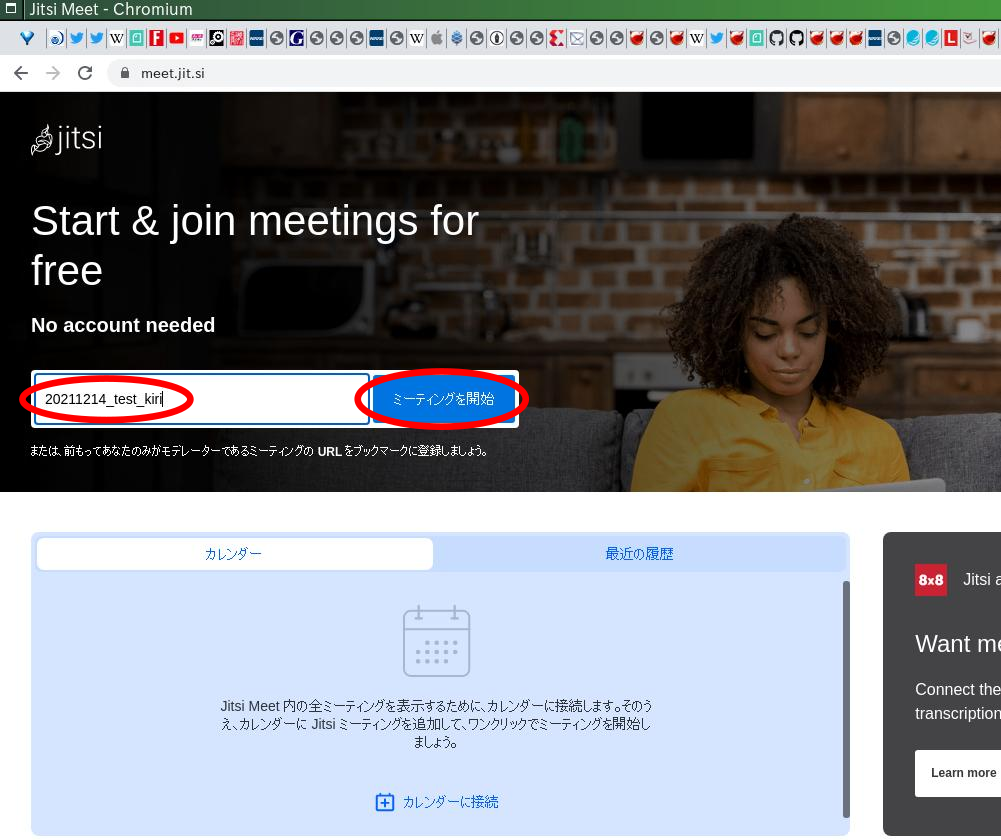
「開始」
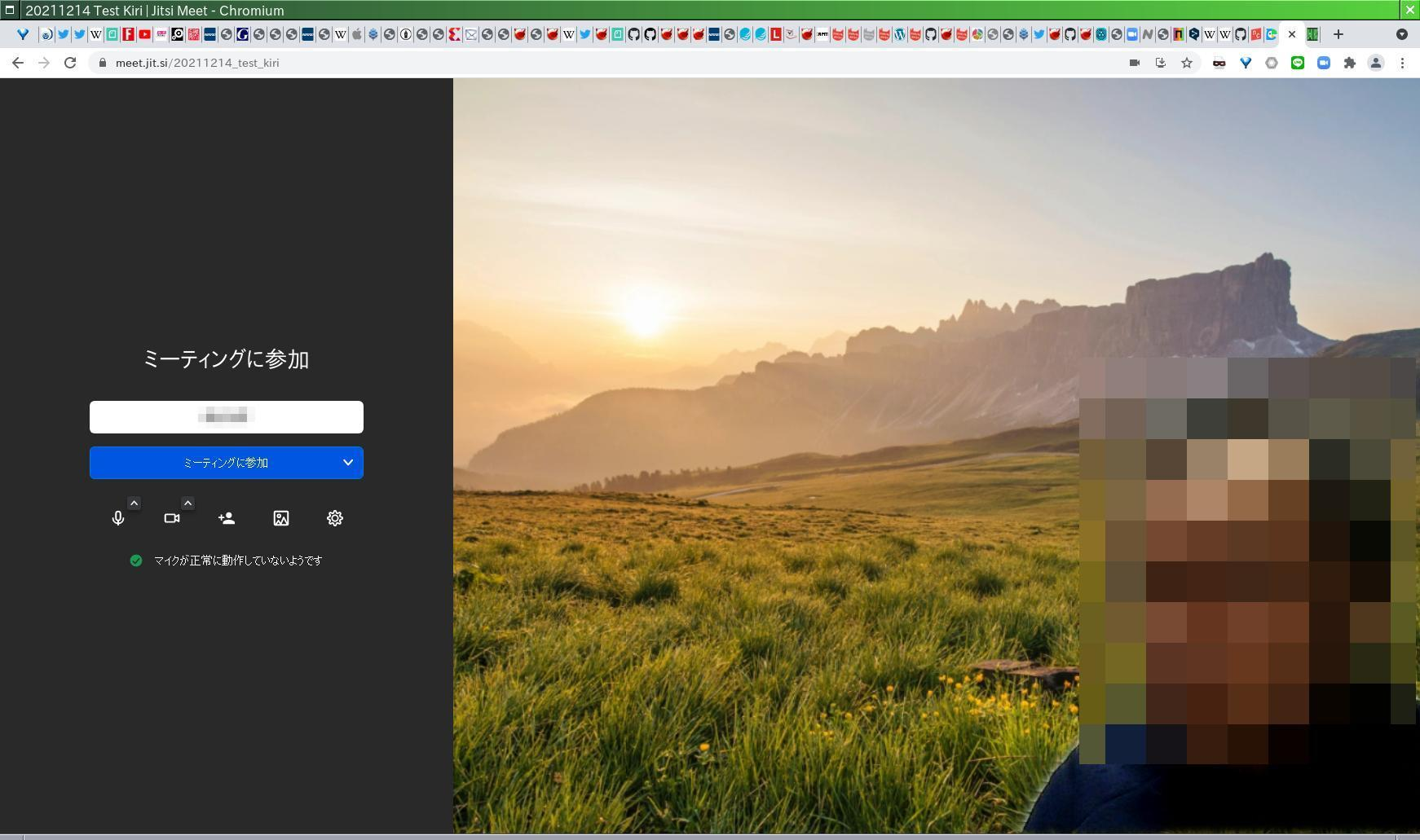
スピーカーのボリュームを最大にする
% mixer
Mixer vol      is currently set to  75:75
Mixer pcm      is currently set to  75:75
% mixer vol 100
Setting the mixer vol from 75:75 to 100:100.
% mixer pcm 100
Setting the mixer pcm from 75:75 to 100:100.
% mixer
Mixer vol      is currently set to 100:100
Mixer pcm      is currently set to 100:100
%
マイクの調整はpcmデバイス番号に応じて/dev/mixer*が生えるのでそれを指定してやれば良い
% mixer -f /dev/mixer4
Mixer mic      is currently set to  25:25
Recording source: mic
% mixer -f /dev/mixer4 mic 100
Setting the mixer mic from 25:25 to 100:100.
% mixer -f /dev/mixer4
Mixer mic      is currently set to 100:100
Recording source: mic
%
-
「設定」
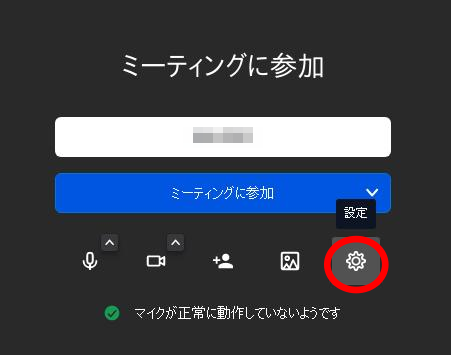
-
「テストサウンドを再生」
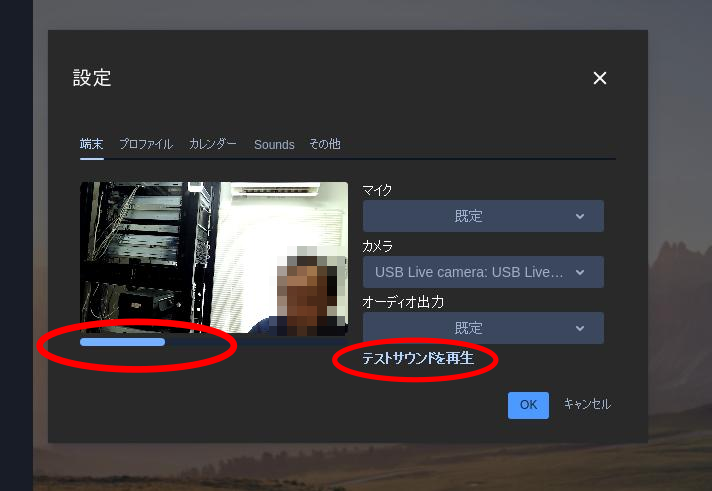
- ここで,スピーカーと同時にマイクの入力バーが表示されればOK !!!
-
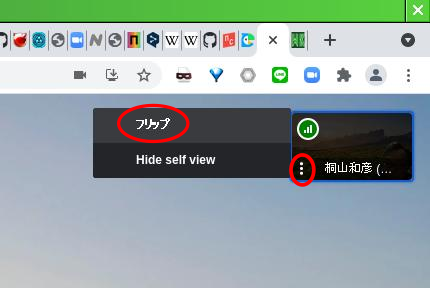
画面の左右を反転したい場合には「フリップ」を選択